
“Design is thinking made visual”
– Saul Bass
When you spot a stunning graphic, it makes your eye pop and brings out that WOW factor in your head.
The very first question that runs in your brain is “Can I design them too?”
What if we tell you that you too can create such graphics in a snap!
Yes, you read it right.
In this beginner-friendly guide, you’ll learn how to use Canva step by step and how Canva for marketing helps create professional visuals in minutes.
Canva lets you design in minutes and helps you create visuals that leave your audience in AWE.
Canva is a digital design platform that has been developed to address the growing challenges of creating effective and innovative designs.
Either you use Canva for marketing or just to share with your peers, it is an amazing tool that gives you super powers to your hands.
👉In this blog we bring you simple yet effective ways to create eye-catching graphics that tremendously improves your workflow yielding better quality results.
If you’re just getting started online, understanding the basics of digital marketing for beginners will help you use tools like Canva more effectively from day one.
Below is a step-by-step guide on how to use canva and useful tips to get started. Before that, let us see why choosing Canva is really important?
Table of Contents
Why Should You Choose Canva?
- The facets of the design world are competitive and complex which is undoubtedly evolving with shrinking attention span.
- Nevertheless, you have to stay current and adjust to new trends and technologies.
- Canva has become a cornerstone for vision communication, branding and storytelling.
- Canva meets the needs of designers from all ages with its cutting-edge capabilities and user-friendly functions.
- Whether you are using Canva for marketing, designing, or branding, you have got it all under one roof.
Today, Canva for marketing is widely used by bloggers, creators, and small businesses to design social media posts, ads, and brand visuals without professional design skills.
🙆Exactly, Canva is your one-stop destination!
Canva For Beginners- A Step-by-Step Guide on How to Use Canva
Let’s start from scratch.
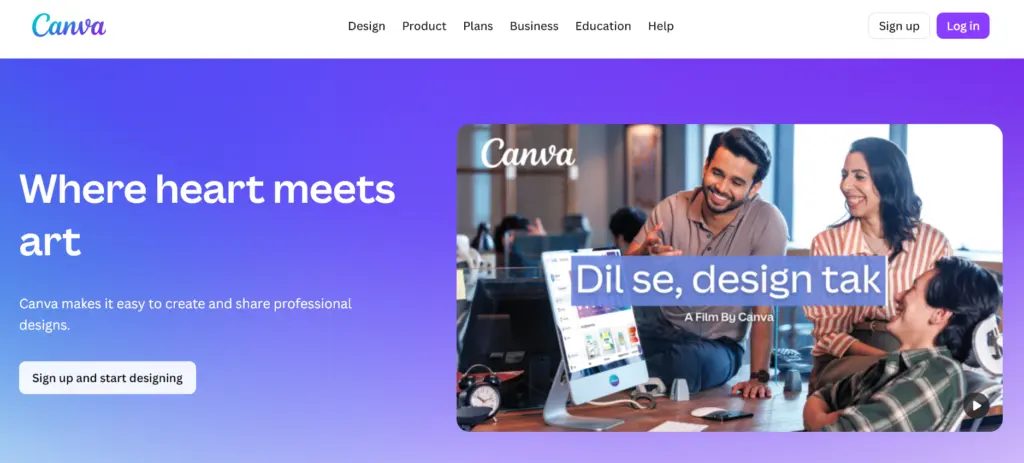
Step 1: Sign Up Or Log In
- Go to Canva page- www.canva.com
- Either sign up or log in if you already have an account.
- Once logged in, proceed to the next step
👉Pro Tip- Feel free to explore the dashboard!
Step 2: Explore the Menu Buttons
A quick pass-on on the menu buttons.
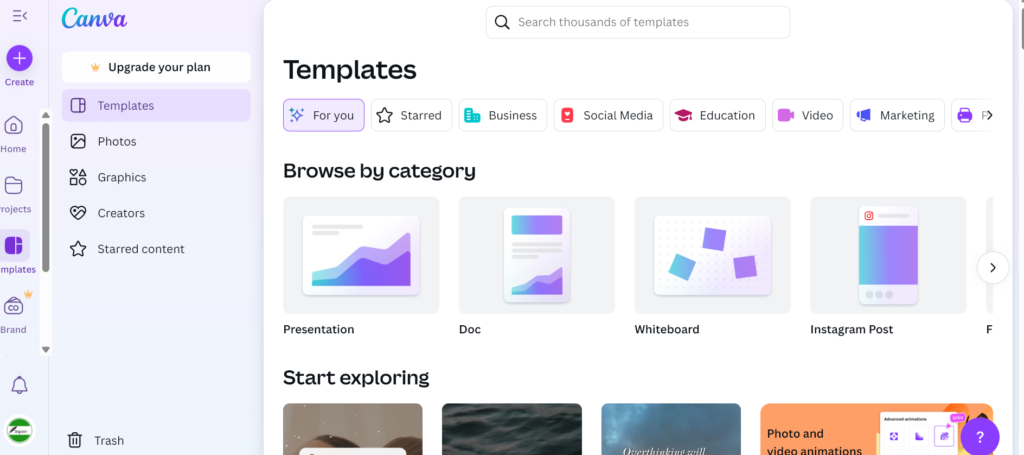
- The top menu button has Home, Templates, Features, Learn (blog articles and tutorials), and Pricing.
- The side menu button has Home, Your projects, Templates, Recommended tab, shared with you page (to find collaborative design), Brand, and Trash.
- At the base of the side panel is the “MORE” button wherein you can personalize the side panel in the editor and choose which content you’d like to add for quick access.
Step 3: Choose a Template
If you’re working with zero budget, pairing Canva with other free marketing tools can dramatically speed up your content creation process.
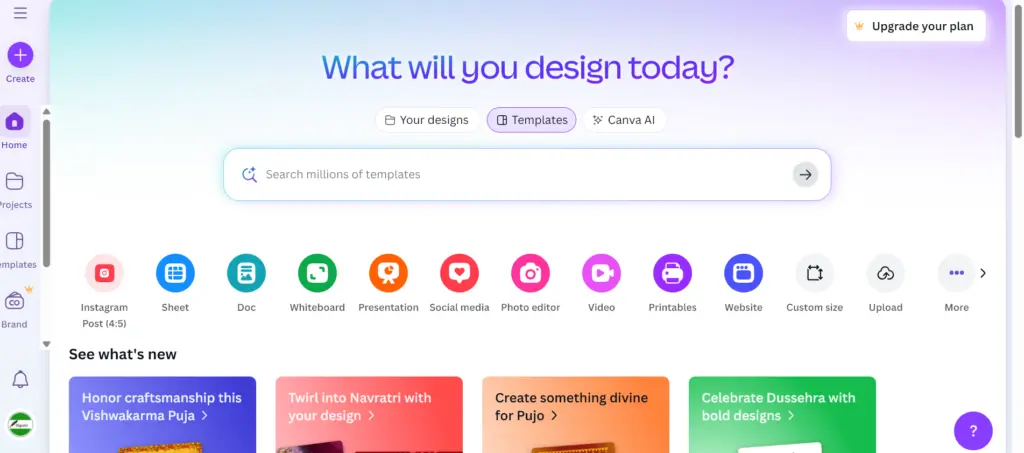
Templates are pre-designed layouts which can be used to create unique designs in canva. Easy drag and drop feature makes it super easy for users to add, remove, or rearrange elements on their designs thereby allowing them to create professional designs without needing advanced graphic design skills.
✈️This is where your official how to use Canva journey begins.
- There are a wide array of template options to choose from the homepage search bar (Social media post, a poster, a presentation, business cards, infographics, invitations, logos or branding, menus or packaging, documents, reports, videos or animation, a flyer, or a photobook, or a campaign, or marketing.)
- Select the pre-set optimal dimensions or you can use custom dimensions.
- Open the template in an editor.
- Customize it to best suit your preference.
- Selecting “BLANK’’ helps you to start from scratch.
👉Pro Tip – Sketch a rough outline of your design on paper and consider what you’d like to include in it.
Step 4: Choose a Background
The background image is the focus of your design and it supports the message of your content. A good background fuels your design in motion.
- Select the background based on your preference and purpose.
- Consider the factors like colors, gradients, images and textures for a salient background.
- Select the “Text” tool in the side panel. Pick the suitable fonts, color, styles and provide the headings, subheadings, and the body texts.
👉Pro Tip- Use short, impactful text. Bold readable fonts for headlines and playful fonts for accents with suitable color palette enhances the mood of your design.
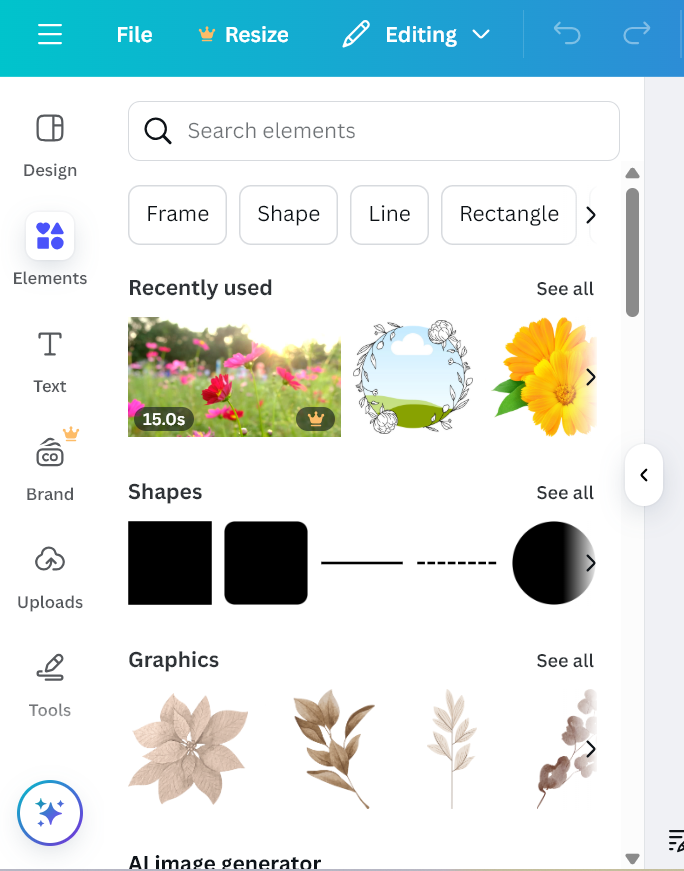
Step 5: Play with Elements
Elements help to create a specific theme, adds visual interest and provides detail to your design. Just keep it simple, avoid clutters and be balanced with your elements.
- Choose and arrange the elements like shapes, lines, stickers, frames, or illustrations according to the need and importance.
- Play with the sizes, colors, contrast, and placements to see what makes your design dynamic.
- Explore the element library here!
Step 6: Add Effects And Filters
You can now make your design more engaging by changing the scale of objects and elements.
- Choose the required images or texts.
- Incorporate visuals like icons, illustrations, or charts to convey information.
- Choose required effects, filters, shadows, and transparency to provide and maintain enough clarity.
👉Pro Tip: Aligning visuals with grids or frames makes your visual look more professional.
Step 7: Using Visual Hierarchy
Visual hierarchy means making important elements look larger and bolder, and using the spacing and alignment features to guide the viewer’s eye respectively. The below picture uses a featured image to give a balanced feel capturing the user’s eye at a glance.
That’s the magic of visual hierarchy.

STEP 8: Brighten Up Your Graphics
You are almost there!
- When everything looks good, all there is left is to add a tinge of drama and effect.
- Select from the huge library of high-quality design elements that canva provides. (Whether it is adjusting light, increasing the brightness, lowering saturation or even the contrast of the image)
- Experiment with different artistic aesthetics and create blasting compositions.
👉Pro Tip: To know more about editing, take a 3 minute mini course on how to edit like a pro using Canva.
Step 9: Preview, Save, and Download
- To see how your design works on different devices, use the “Preview” button before finalizing.
- You can also share or download on your preferred format like PNG, JPG, PDF.
- The design that you have drafted will be saved automatically in your canva account.
Canva’s Basic Design Types
Canva’s basic design can help you custom create it or use tools for websites, videos and editing within the platform. Pre-made templates are optimized for different platforms and purposes.
🔺 Digital design types
Includes sheet, doc, whiteboard, presentations, social, photo-editor, videos, print, websites, resumes, logos, infographics, graphs and charts, draw, PDF editor.
🔺 Print design types
Includes business cards, invitations, flyers, brochures, t-shirts, mugs, stickers, hoodies, labels, posters, calendars, photobooks and greeting cards.
🔺Image and photo design type
Includes photo editor, background remover, photocollages, mockups, image enhancer, AI image generator, AI photo editor, and AI art generator.
🔺Videos and audio design type
Includes video editor, video trimmer, online video recorder, convert videos to MP4, AI video generator, youtube video editor, text to speech voiceover, AI music generator, and AI voice generator.
Important Tips to Create Professional Designs Using Canva
💡 Study, read, research, and resource, also create a moodboard.
💡A relevent high-quality template is your foundation.
💡 Maintain consistency with your brand colors, fonts, and logos.
💡 Establish clear visual hierarchy with fonts, colors, images, minimal graphics and avoid cluttering.
💡 Specific alignment and spacing tools like grids, rulers and arrangement of elements adds that professional look.
💡 Create adequate white spaces.
💡 Download in PNG or PDF for high quality output.
💡 Explore Canva’s tutorials and design school for more tips.
FAQS : Canva For Beginners
How can beginners use Canva for marketing?
Beginners can use Canva for marketing by selecting ready-made templates, customizing brand colors and fonts, and creating visuals for social media, ads, and blogs without design experience.
What are the benefits of using Canva’s AI tools?
Canva AI design tool helps to automatically generate design elements, create contents at ease, generate visual assets tailored to specific platforms and target audiences, producing stunning visuals in different styles.
Where can I find Canva Team?
“Create a team” button in the menu tab helps you to create or join the online canva team where you can showcase your works, brainstorm ideas and leave feedback for other members all within the canva group.
How can I change the canvas size when I am in the middle of the project?
You can easily use the crop tool to resize or just select the canvas size in the image menu and you can enter your new preferred size.
Is it possible to use multiple pages in one project?
Yes, it is possible. This feature is accessed by clicking the “Add Page” or “Add Page Type” buttons.
📌 Most Read on Digistir360
👉 Digital Marketing for Beginners
👉 Free Marketing Tools for Small Businesses
👉 Instagram Marketing Tips for Growth
A Quick Recap
- Canva has invariably broken the barrier between professionals and amateurs.
- Canva’s library is loaded with free images and you can just drag and drop your selected images and icons. You can also upload your own images.
- With its incredible features, ease of functions, access to widespread templates and support from Canva Community, creating an eye-catching design is just minutes away.
- Canva helps the brands to build creative ideas and captures audience attention with ease.
Final Thoughts
Hope our step to step guide on how to use canva got you on board!
To explore more such amazing tools and techniques, check out our free digital marketing tool kit for beginners.
So, what are you waiting for?
Elevate your designs effortlessly using Canva, right now!
If this guide helped, you’ll enjoy these next:
👉 Beginner: Blogging Mistakes Every Beginner Should Avoid
👉 Advanced: Instagram Marketing Tips That Actually Work